How to choose the best photo for a pet portrait
By AIPetPortrait · Last updated:
The best photo for a pet portrait is usually the one that makes your pet easy to recognise before any art is added. Look for the eye colour, ear shape, muzzle and coat patches you would point out to someone drawing them. A beautiful sunset photograph can be a poor reference if the face is a silhouette. A simple phone photo near a window may show much more useful detail.
AI can change features even with a clear reference. A good source gives the tool better information; it does not guarantee a perfect likeness. Use this guide to choose between photos you already have or to take a new one without making your animal uncomfortable. The sample animals and finished portraits on this page are AI-generated illustrations of the process.
Start with the features you want to keep
Open the original photo at a larger size. Can you see the edge of each eye, the nose and the boundary between the main coat colours? For a tabby cat, inspect the stripes around the eyes and forehead. For a dog with a pale chest or an uneven facial patch, choose a view where those features are visible. A bird’s beak shape and feather colours matter just as much as fur markings.
Compare candidate photos side by side. Prefer the image with clear detail over the one with the most dramatic background. If you want a full-body portrait, include the feet and tail with some space around them. For a close portrait, a head-and-shoulders crop can be enough, provided it includes the ears. Avoid cutting through an ear tip or the top of the head.
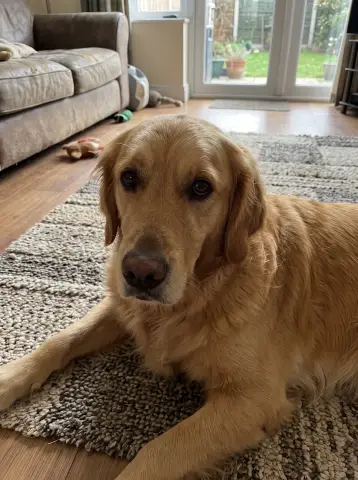 Original photo (AI-generated sample)
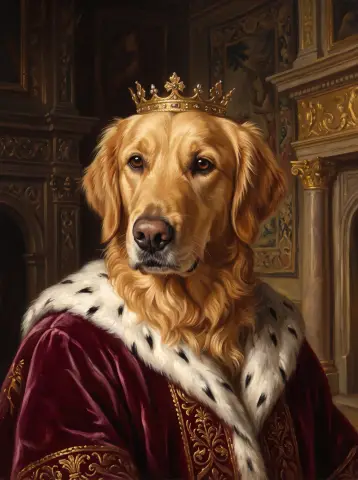 Royal portrait
Use soft light and a familiar angle
Get down to eye level
A photo taken from standing height can make a small animal’s head look large and its body disappear. Move the phone closer to eye level when it is safe and comfortable to do so. You do not need an exact straight-on pose, but both eyes are useful when you want a front-facing portrait. A clear three-quarter view can work too; a strong side profile provides less information about the hidden side of the face.
Turn towards daylight
Try a spot near a window or outdoors in open shade. Keep the main light in front of the animal or slightly to one side. A bright window behind your pet can leave the face too dark. Direct midday sun can create hard shadows around the eyes. If black fur looks like a solid shape on screen, move to softer light and check whether you can see texture without washing out lighter markings.
Keep the face free
Move distracting objects out of the foreground rather than relying on a heavy crop later. A toy over the muzzle, a cage bar across an eye or a blanket covering a chest patch removes information the AI would otherwise use. Do not restrain or dress an animal just for a reference picture. Choose an existing relaxed photo if taking a new one would cause stress.
Phone settings: sharp detail beats extra effects
Clean the phone lens and tap on the pet’s face to set focus. Take a few ordinary photos while the animal is still, then inspect the eyes at full size. Motion blur makes edges smear even when the thumbnail looks appealing. Avoid digital zoom when you can move safely closer; cropping a distant pet from a wide scene leaves fewer details for the portrait.
Portrait mode can soften a busy background, but it can also blur whiskers, feather edges or ear tips. Take one regular photo and one portrait-mode photo, then choose the version with intact edges. If the phone has applied an artificial blur halo, use the regular image. Turn beauty effects and strong filters off. They may alter eye colour, smooth away fur patterns or tint a white coat.
JPEG, PNG, WebP and HEIC are supported by the upload tool. HEIC is fine; the browser converts it for processing. Keep the original file when possible, rather than sending a screenshot of a screenshot. If a HEIC file cannot be converted on your device, export a JPEG copy using your photo app and try that. Follow the tool’s displayed file-size limit and check the preview before generating.
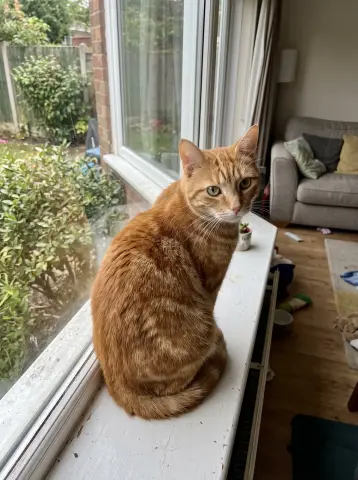 Original photo (AI-generated sample)
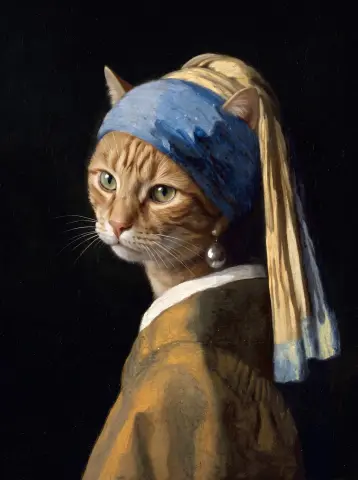 Pearl Earring portrait
One pet versus a group photo
For one animal, select the correct pet type and a photo where that animal is the clear subject. If another animal is partly visible at the edge, choose a different frame or crop it out while keeping your subject’s important features. The tool should not have to guess which face you want to portray. See the dog, cat and other pet pages for examples.
For multiple pets, use one photo containing two or three animals with separate, visible faces. A little space between bodies helps you compare the result. Avoid overlapping heads, hidden legs and one very distant animal behind another. Review each animal separately after generation: the AI may swap colours or merge features. If you cannot find a clear group reference, individual portraits may be the more useful choice.
Using older photos without losing context
You may only have a small or older picture, especially when making a memorial portrait. Start with the least blurry original available. Search your own photo library or ask a family member for the original file rather than enlarging a compressed message attachment. Enlargement cannot reliably recover details that were never captured. A painterly result may feel appropriate, but it can still invent markings hidden by blur.
Only upload animals. Photos with identifiable people are not supported. Choose another frame or crop people out fully while preserving the pet’s face and ears. Use a photo you own or have permission to use. For a friend’s animal, ask before borrowing an image from a private album. Our privacy policy explains private storage, processing providers and retention; download the images you want to keep within 30 days.
Your final upload checklist
- The eyes are sharp enough to inspect, without motion smearing.
- The ears, muzzle and distinctive markings are visible.
- Soft light shows the real fur or feather colours.
- Filters and artificial blur have not changed the face or edges.
- There are no identifiable people in the image.
- For a group, every animal is distinct and easy to compare.
- You have permission to use the photo and kept the original.
Start with a style you can compare easily, such as Watercolor or Royal. After generation, place the original beside the portrait and check the features on your list. Keep a result because it feels like your companion, not just because the costume or background is attractive.
Try your photo in Watercolor ↗